Once your snippets are published on the microsite, you can start sharing them with your audience to boost visibility and engagement.
Snippet AI makes this easy with built-in social sharing tools, OTP-protected links, and optional download permissions.
Step 1: How to Share Snippets
Every snippet generated by Snippet AI is instantly shareable.
To share a snippet:
- Go to your event dashboard or microsite view.
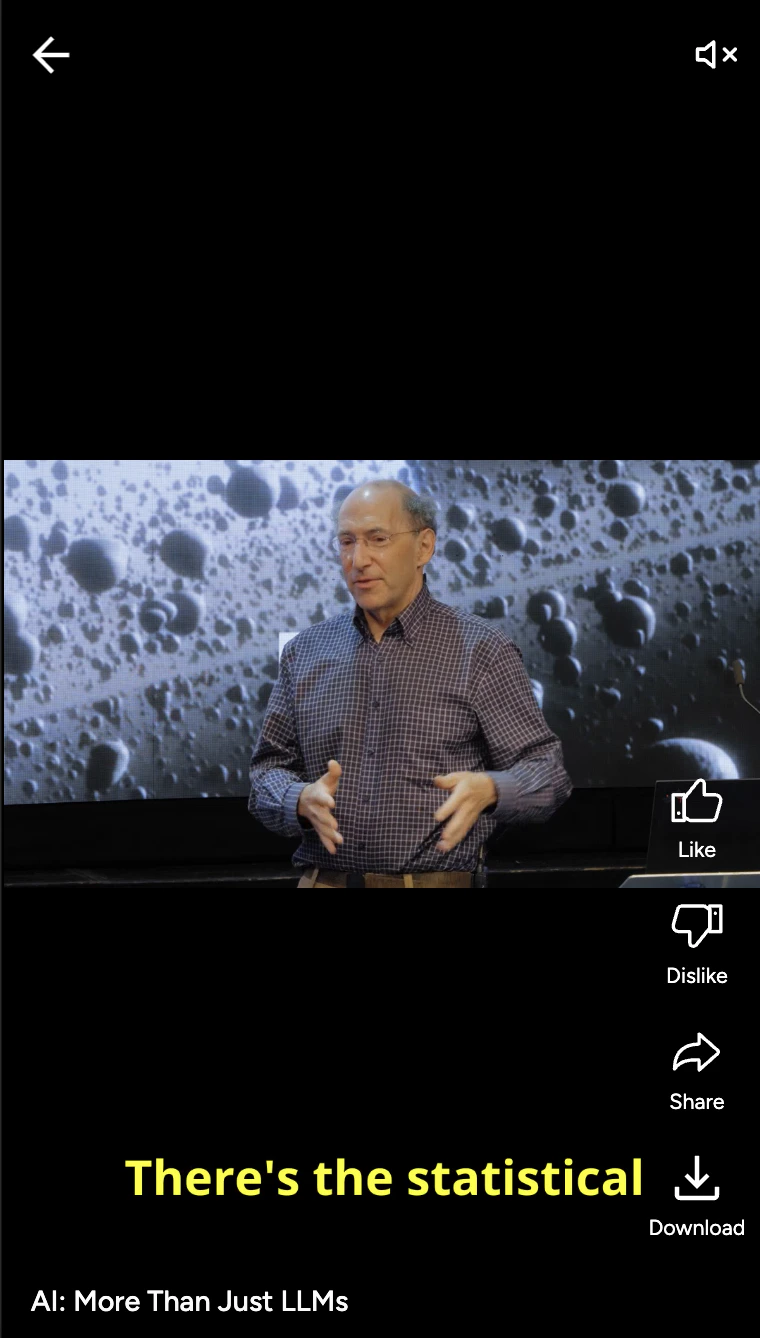
- Click on any snippet card — this opens the snippet in a short clip slider.
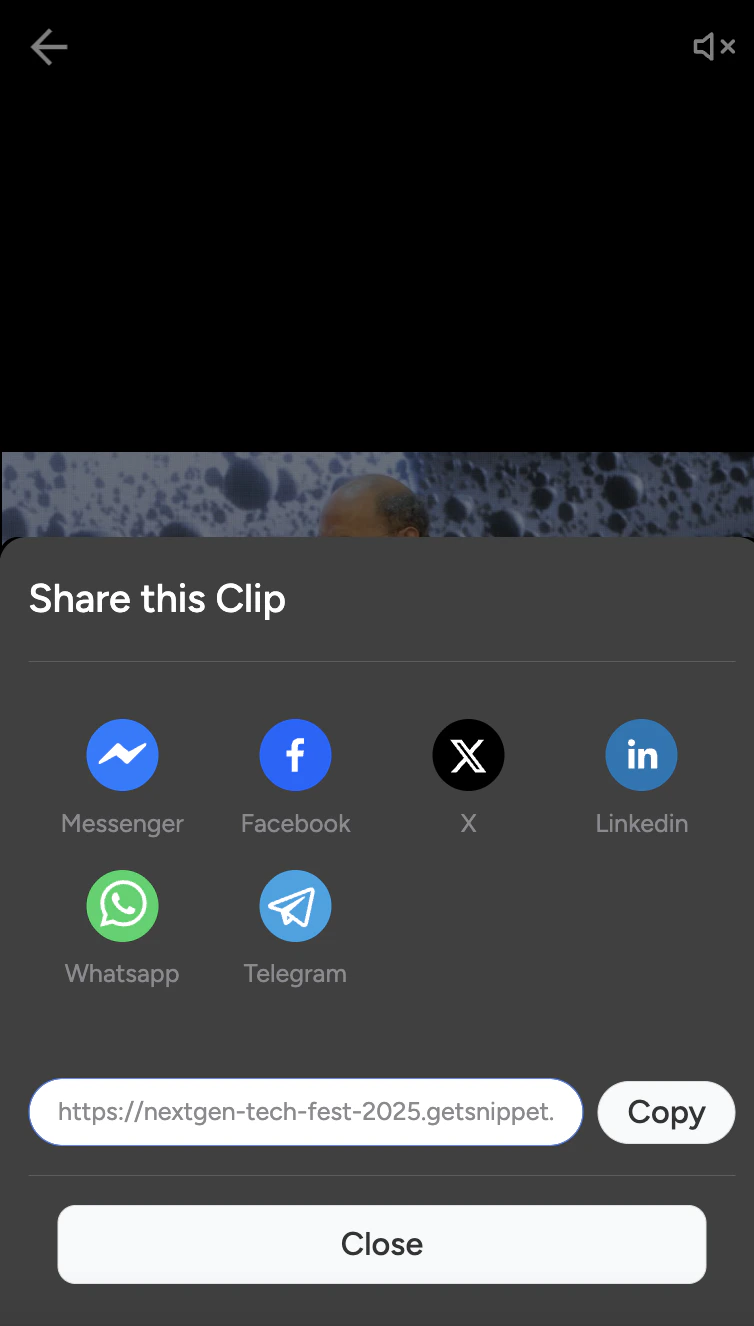
- Tap the Share icon (🔗) to reveal sharing options.
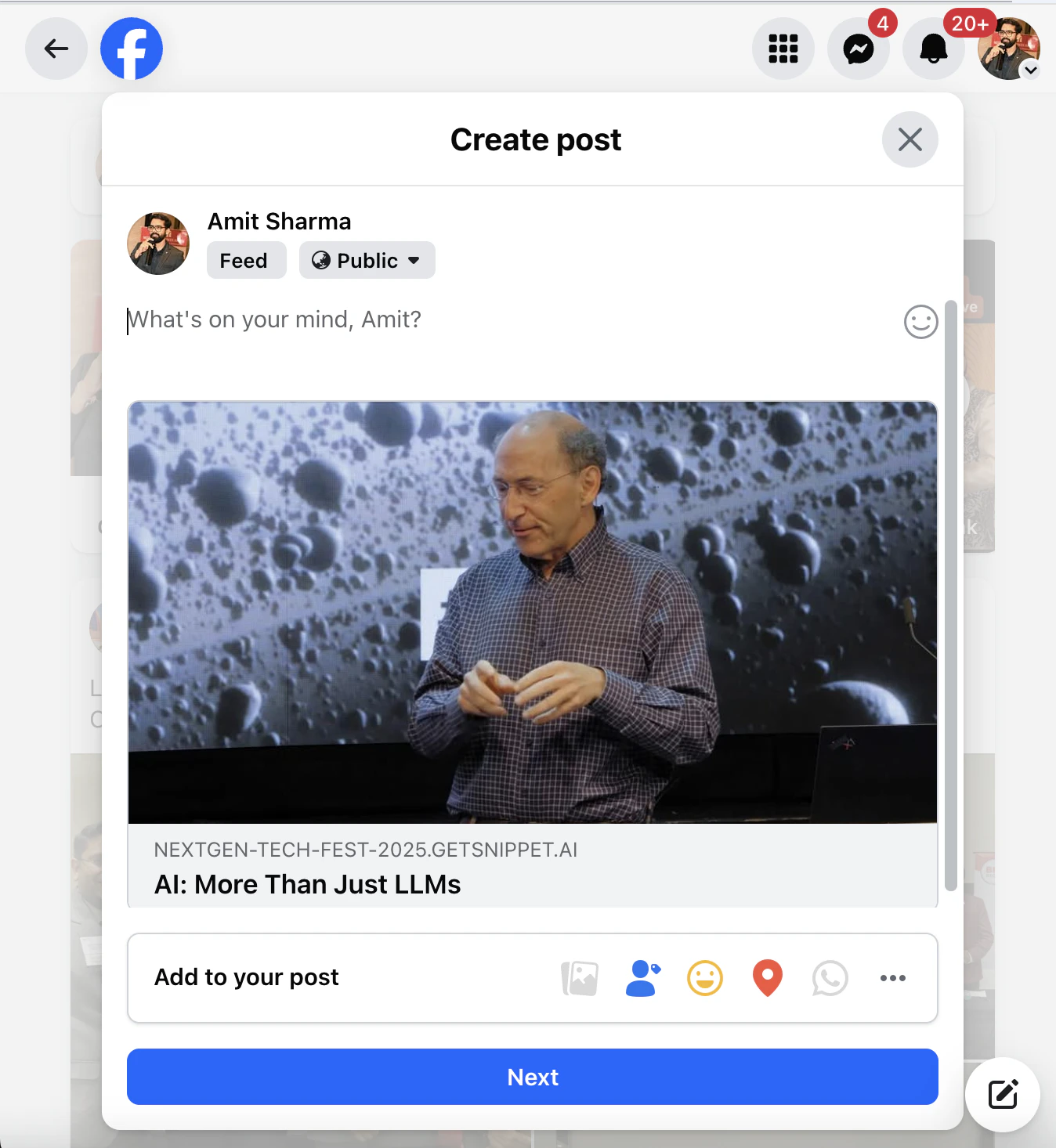
- Choose your preferred platform.
Currently supported major platforms include:
- LinkedIn
- Facebook
- X (Twitter)
- Instagram
- WhatsApp
When sharing to WhatsApp, you can customize your message — write a short caption or teaser text that appears along with your snippet link.
Example WhatsApp Message:
“Check out this powerful moment from India Startup Pavilion at IMC 2025 🚀 — powered by Snippet AI!”
Pro Tip: Keep your social caption short and intriguing — use 1–2 sentences that create curiosity or FOMO.
Step 2: OTP-Protected Links
Snippet AI ensures secure access for all shared content.
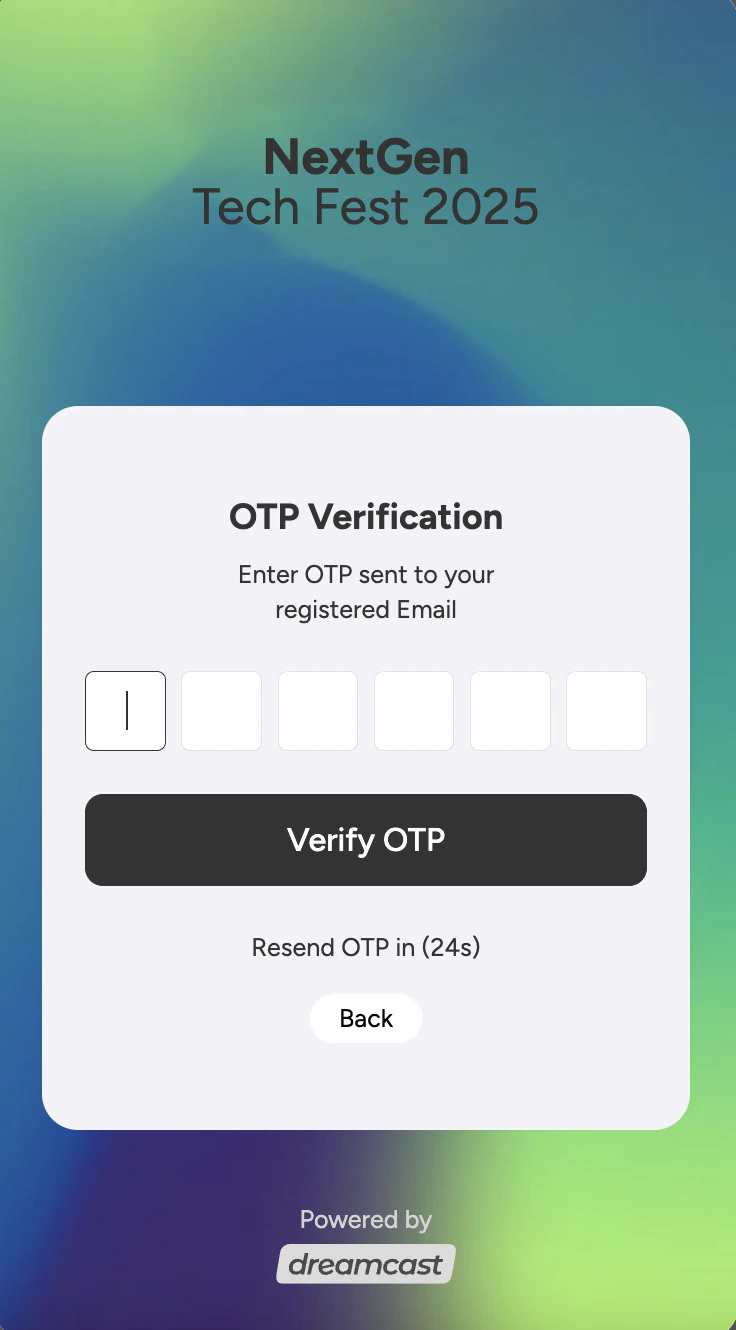
Each shared snippet or microsite link is OTP-protected, meaning:
- When a viewer clicks the shared link, they’ll be prompted to enter their email ID.
- An OTP (One-Time Password) is sent to their email for quick verification.
- After OTP validation, they can instantly view the video or snippet.
This ensures that your event content remains private, trackable, and safe, even when shared publicly.
Tip: Use OTP-protected links when sharing private or invite-only event content — it maintains exclusivity and helps capture verified leads.
Step 3: Downloading Snippets
Snippet AI also allows users to download snippet videos — if this feature is enabled by the event admin.
Admins can manage download permissions under:
Settings → Access → Download Permissions
Options include:
- ✅ Allow all users to download snippets.
- 🔒 Restrict downloads to admin or internal team only.
- ❌ Disable downloads entirely.
Once enabled, users will see a Download icon (⬇️) below each snippet.
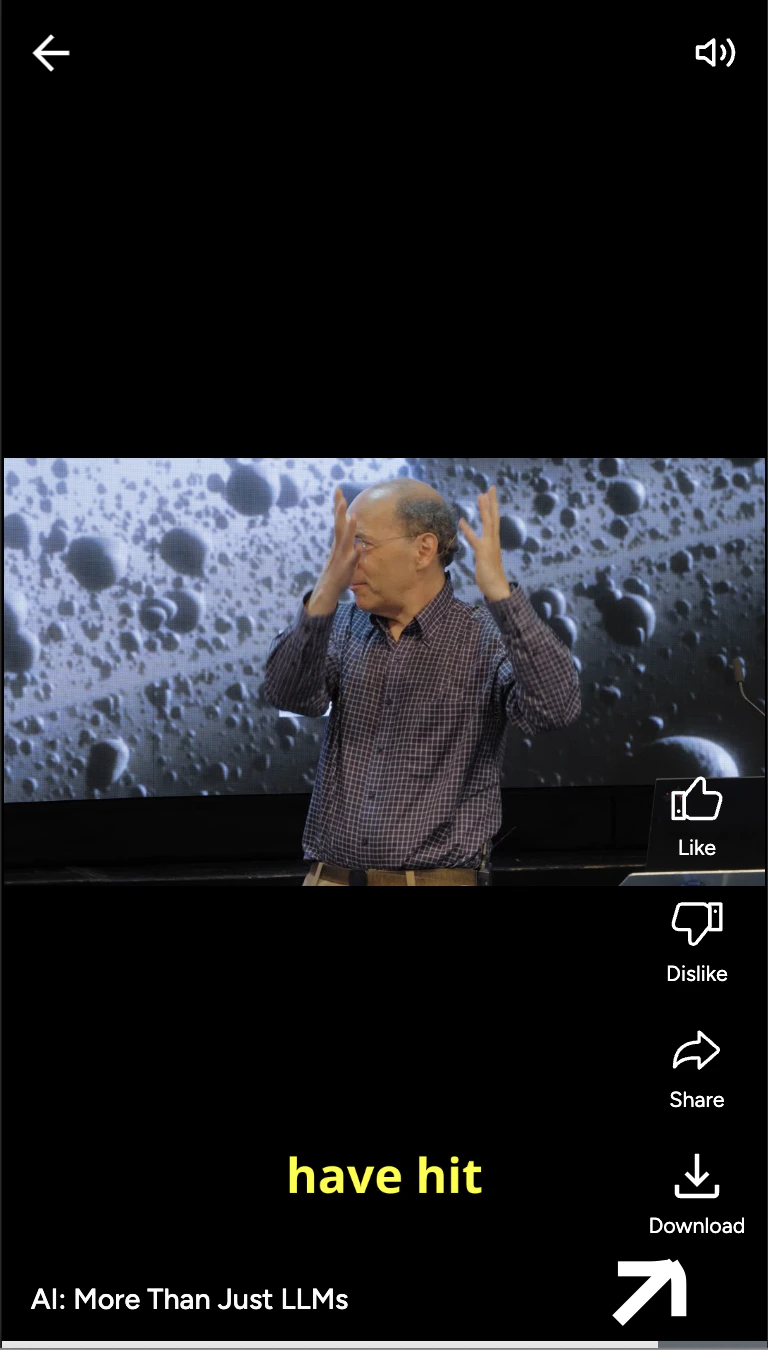
Pro Tip: Enable downloads for promotional highlights, press releases, or internal knowledge sharing — and disable it for premium or restricted content.
Need Help ?
We’re here to support you every step of the way.
Email us anytime at [email protected] for help, feedback, or product guidance. 
